105. Running an evaluation in Foretify Manager
Use Foretify Manager to run drive data through the Evaluation Pipeline rather than running it locally. Foretify Manager runs the evaluation across multiple machines in parallel, typically in the cloud, which is much faster than processing large volumes of data on a single local machine.
-
Access the Launch Evaluation Run dialog box using one of the following:
-
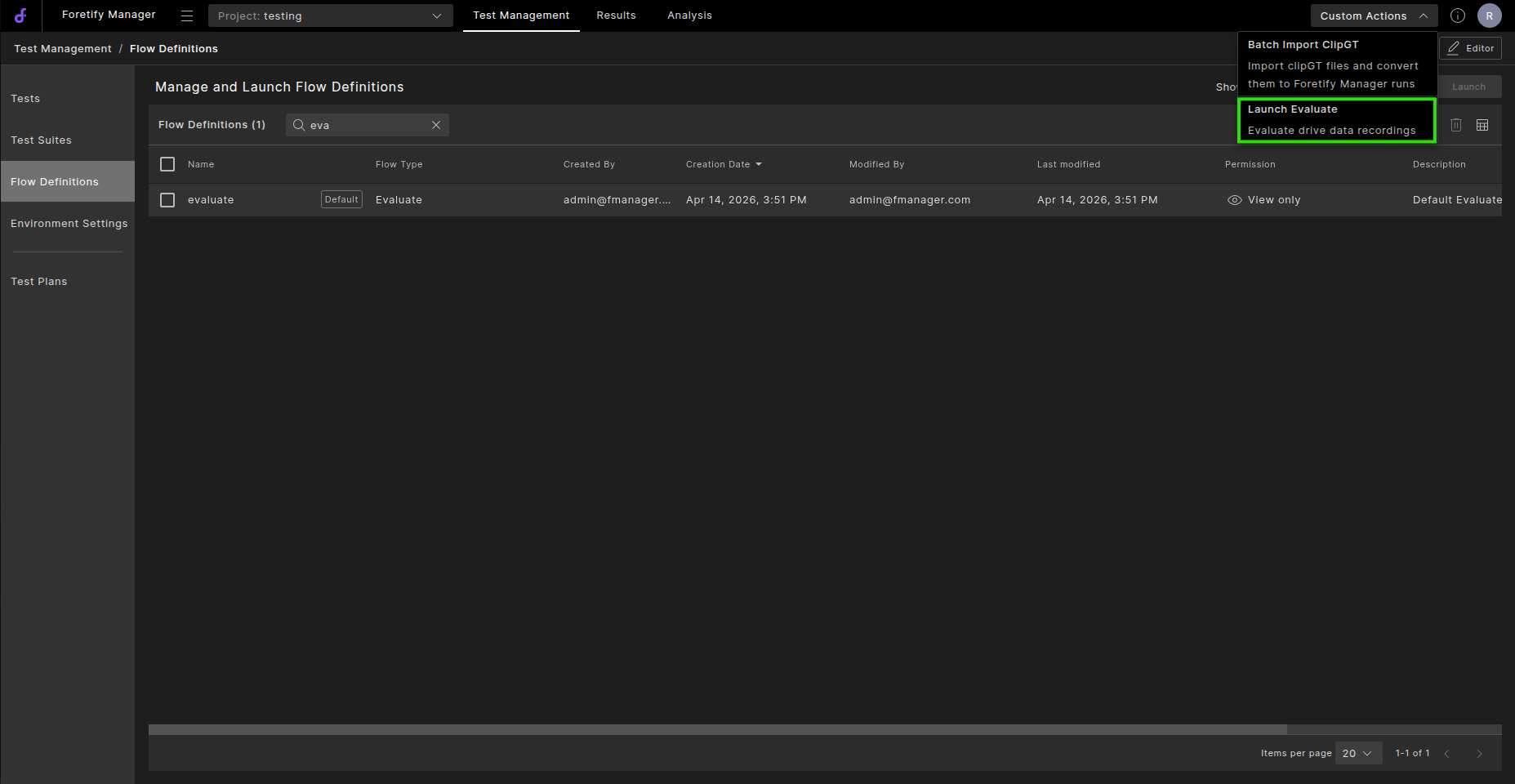
Select an evaluate scenario and click Custom Actions and then Launch Evaluate.
-
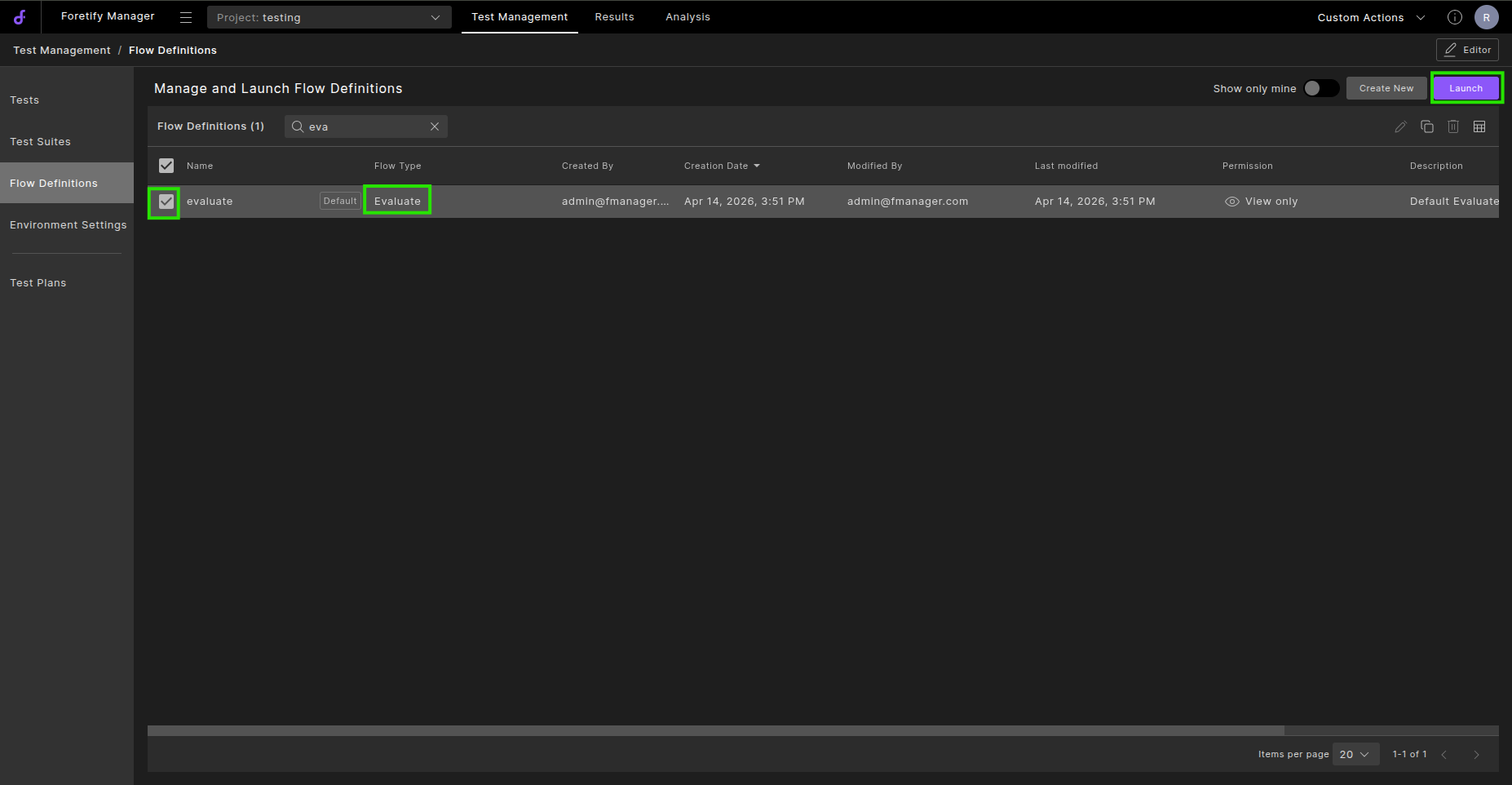
Go to Flow Definitions, select an evaluate scenario and click Launch.
-
-
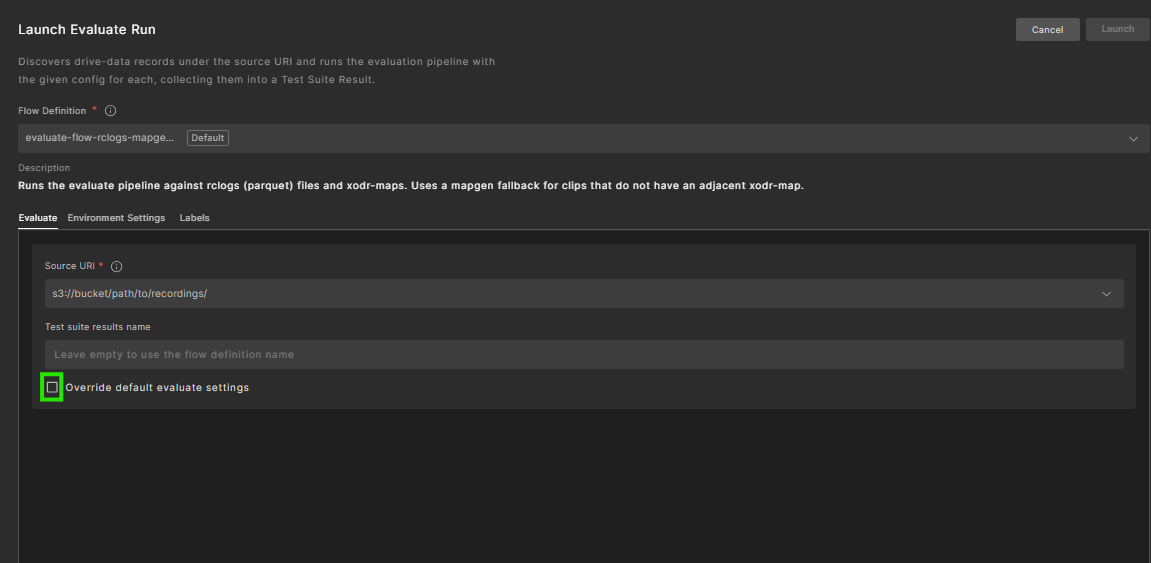
Specify the Source URI where the source files are located, and then select Override default evaluate settings.
-
Override the flow definition by entering and selecting the information in the dialog box:
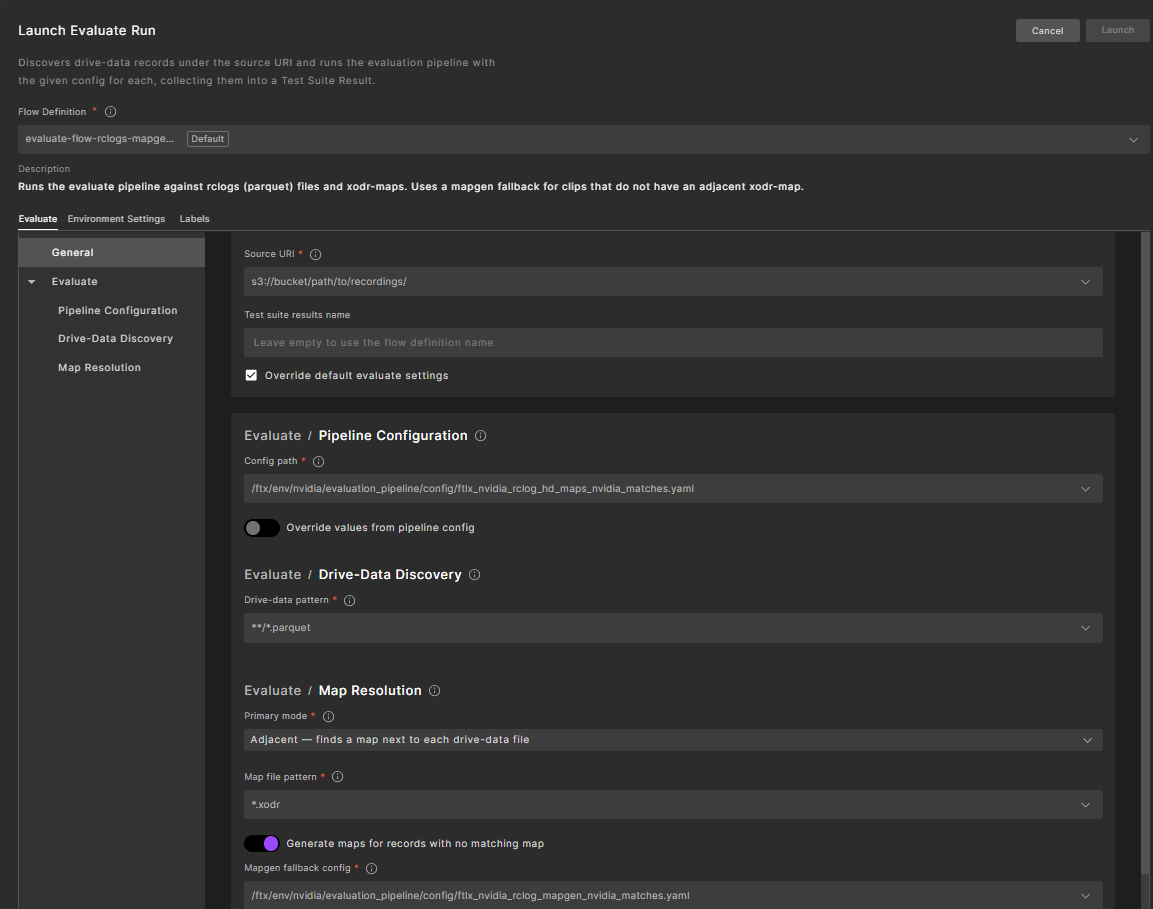
General
-
Name — Define a name for your flow. The flow will be visible on the flow definitions page under that name.
-
Description — Add a description (optional).
-
Flow type — Always choose Evaluate for the Evaluate flow.
-
Environment settings — Choose evaluate-default-settings (unless you have set up specific settings before).
-
Execution labels — Define and pick labels to attach to each execution of this flow.
Evaluate / Pipeline Configuration
-
Config path — Define the path to the Evaluation Pipeline flow config file to be used. Can be a local path in the Foretify image that is used (path should start with $FTX) or an S3 path. The specific S3 bucket must be available to the Foretify Manager server.
-
Override values from pipeline config — Toggle to enable if you want to deviate from the Denoiser config (
*.yaml) and User top file (*.osc) that are defined in the Evaluation Pipeline flow config. Useful if you want to run, for example, different scenarios with the overall same Evaluation Pipeline flow.-
Denoiser config (override) — Override the Denoiser config path. Leave empty to use the value for Config path.
-
User top file (override) — Override the user top file path. Leave empty to use the value for Config path.
-
Evaluate / Drive-Data Discovery
- Drive-data pattern — The discovery mode of the Evaluate flow will later descend down the input data folder/bucket you provide and search for all files that satisfy this pattern. For example,
*.pbmatches all protobuf files, or*_recording.pbmatches protobufs ending in_recording.
Evaluate / Map Resolution
-
Primary mode defines how the map is resolved:
-
Adjacent — Finds a map next to each identified drive data.
-
Specify the Map file pattern field below. For example, use
*.xodrto match all OpenDrive files. - In each folder, there must be an exact matching map file that fits all object lists in that folder.
- You can use multiple folders if you have multiple maps.
- Toggle Generate maps for records with no matching map to enable MapGen.
- If no matching map is found adjacent to a drive data file, MapGen creates one.
-
This requires the Evaluation Pipeline flow config to have MapGen enabled.
-
Fixed — Uses one map for all records. This requires the full map path. Again this can be a path starting with $FTX if the map is part of the Foretify image that is run or an S3 path.
-
Handled by the job — No map is required. The Evaluate flow ignores map resolution and expects the Evaluation Pipeline setup to resolve the map, for example in the parser by drive data geocoordinates.
-
MapGen for all — Generate a map for every record. Always run MapGen, regardless of available maps. This requires the Evaluation Pipeline flow config that is referenced in Evaluate / Pipeline Configuration to have MapGen enabled.
-
-
Map file pattern — Glob pattern used to find map files. For example,
*.xodrmatches all OpenDrive files, or*_map.pbmatches protobuf files ending in_map. -
Generate maps for records with no matching map — Toggle to enable and then select the MapGen fallback config.
- MapGen fallback config — Select the MapGen flow config used to generate a map when no adjacent map is found.
Note
You can adapt the default evaluate config for a single execution through the slide-out window that appears when you select Launch from the flow definition. To make permanent changes, copy the existing flow definition and edit it in the Flow Definitions page.
-
-
Click Launch to run the evaluation.