17. Save and load tests
The Scenario Designer saves your work automatically as you edit. It creates a draft test the moment you start editing and saves changes in the background. The Save status indicator in the toolbar shows the current save state. You can also save the scenario as a new test or load a saved test.
17.1 Save status indicator
While the Scenario Designer is open, the toolbar shows the current save state.
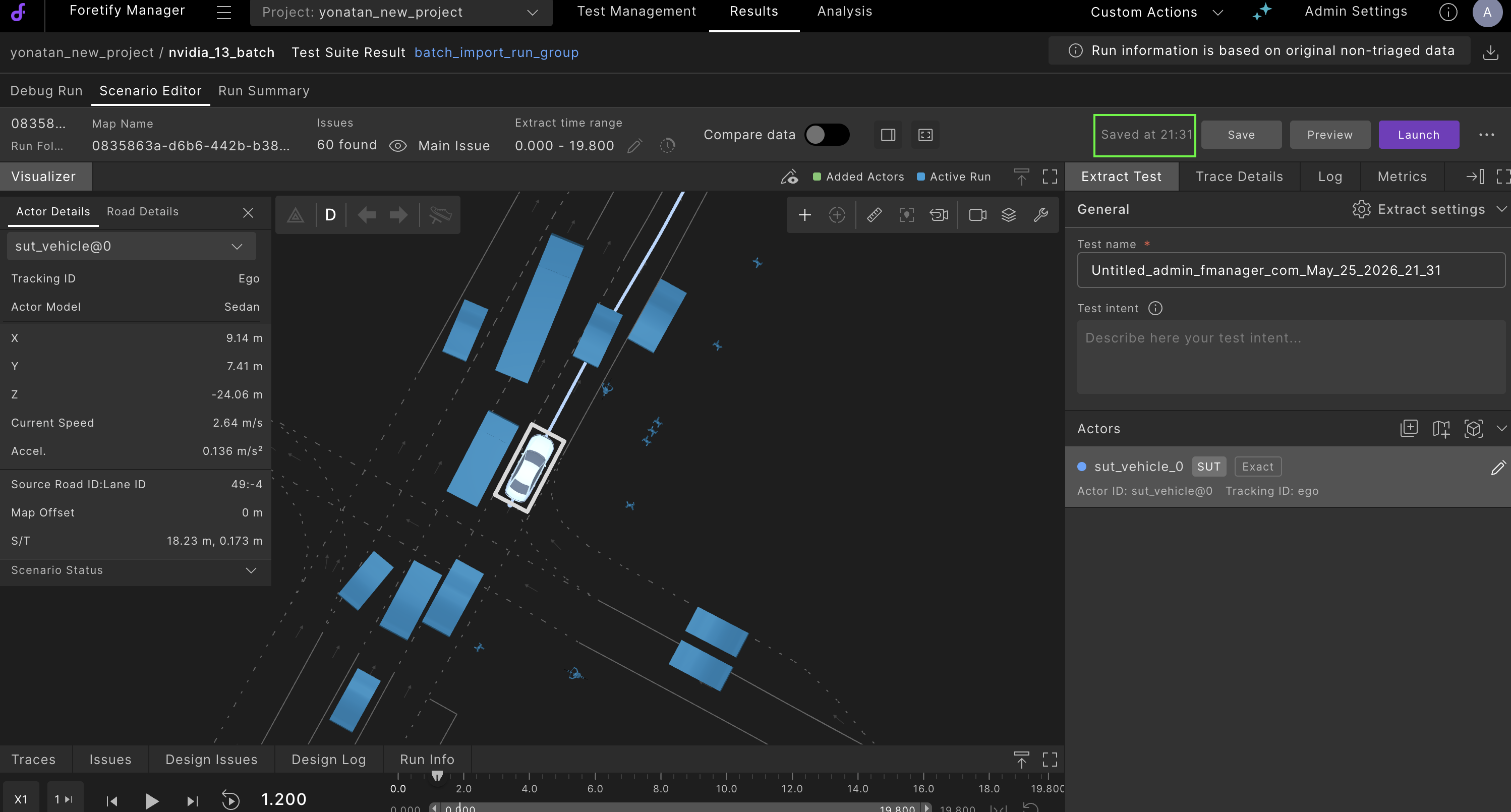
| State | Description |
|---|---|
| Saved | Your changes are saved. |
| Saving... | Foretify Manager is saving your changes. |
| Unable to save | The last save failed. The Scenario Designer retries automatically — keep editing without losing your changes. |
17.2 Name a new scenario
When you start editing a new scenario, the Scenario Designer automatically creates a draft and assigns it a default session name in the format Untitled_<your-username>_<session-timestamp>. The name appears in the Test name field in the toolbar:
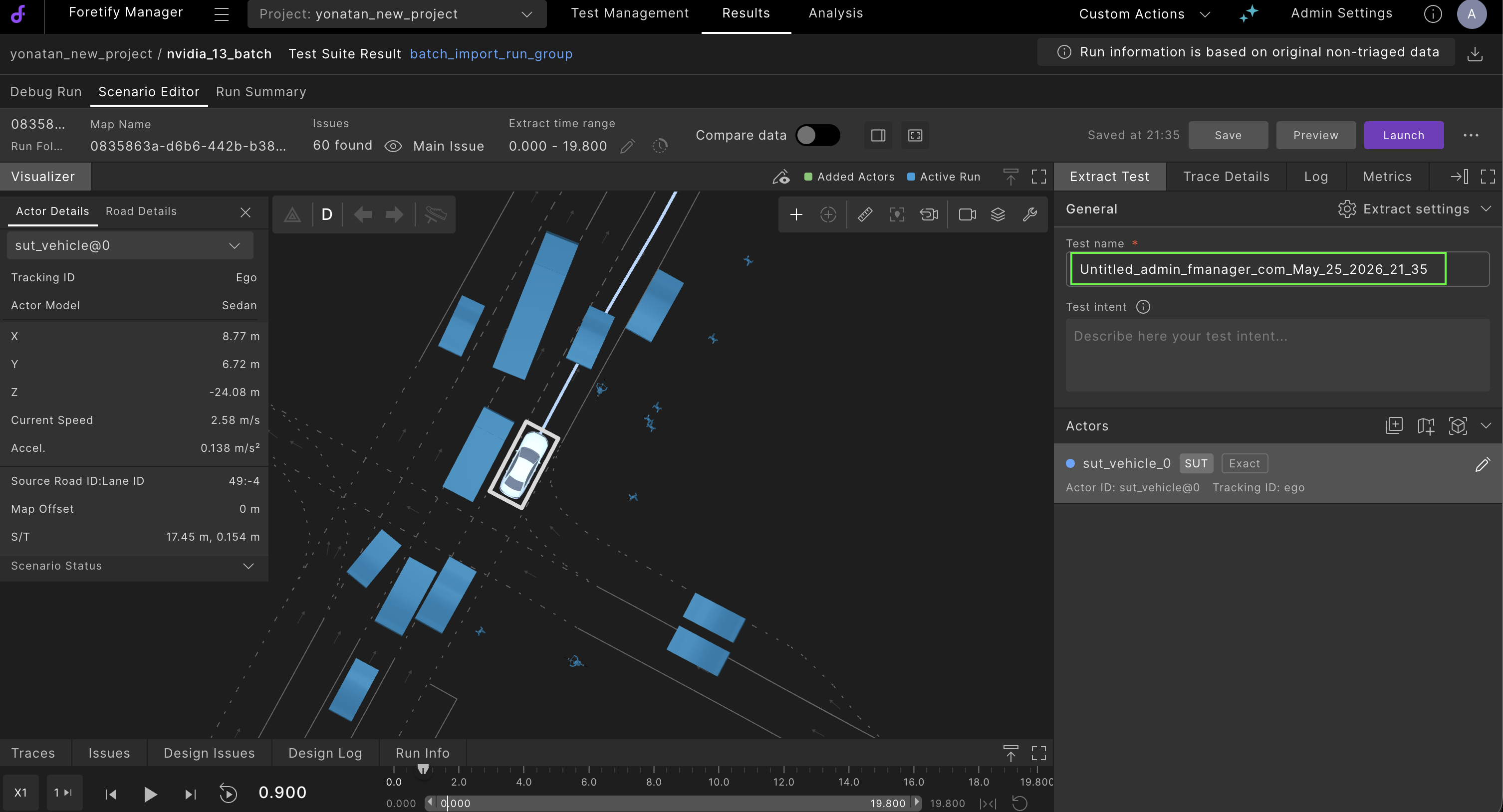
To rename the session draft name to something meaningful:
-
Click the Test name input in the top-right toolbar.
-
Type a new name.
-
Click outside the input (or press Tab) to apply the name.
Auto-save renames the existing draft in place — no new test is created.
Note
If you clear the Test name input and click outside it, the name reverts to the session default Untitled_<your-username>_<session-timestamp>. Auto-save continues saving to the same draft.
17.3 Save the scenario
Auto-save saves your work in the background — you don't need to save manually. If you want to save, click Save in the toolbar.
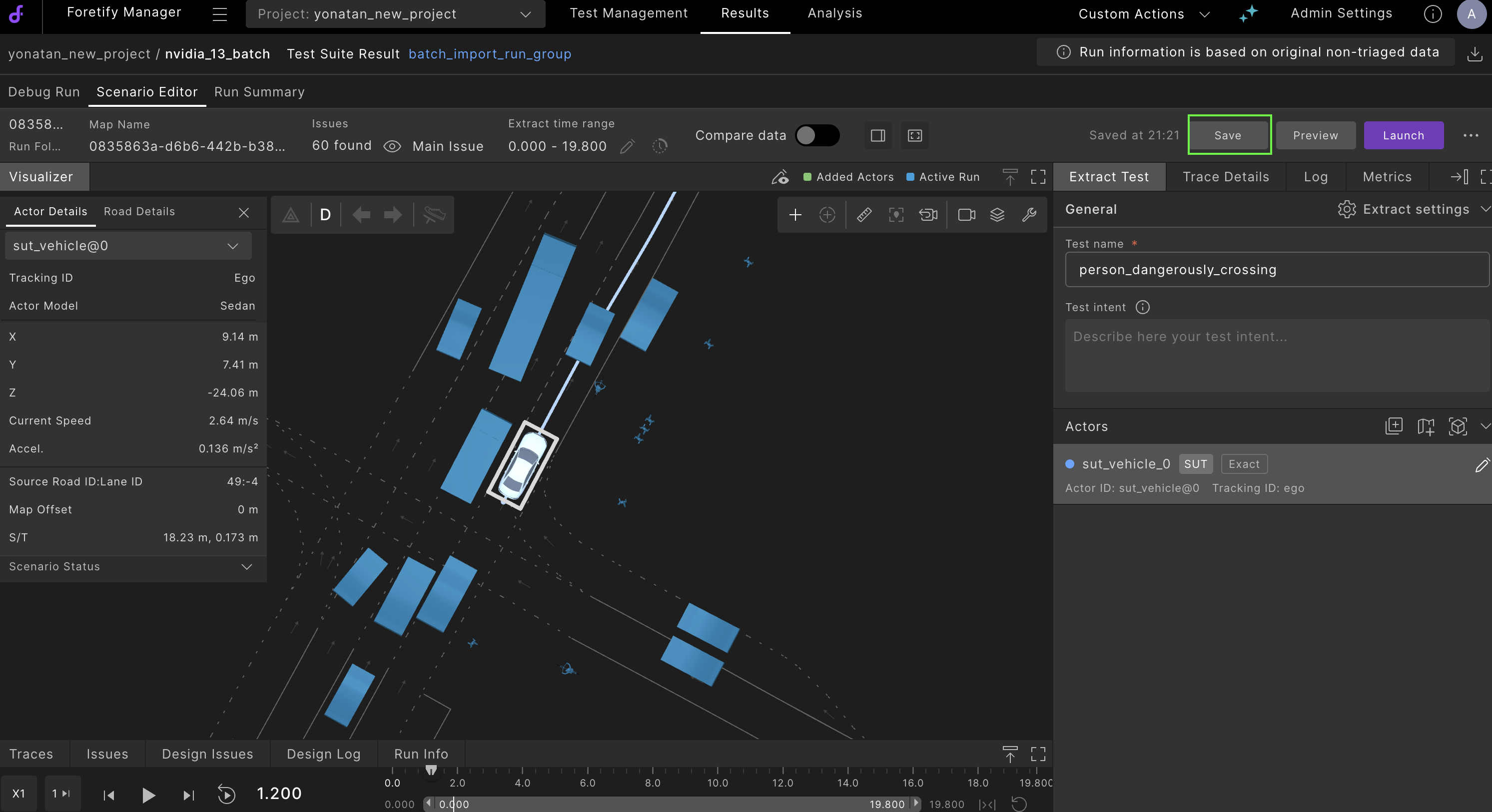
The Save status indicator transitions to Saving... , then Saved when the save completes.
Note
All toolbar actions are unavailable during a save.
17.4 Save as a new test
To save the current scenario as a new test without changing the original, use the Save as new test option.
-
Click the More options
 icon in the top-right toolbar.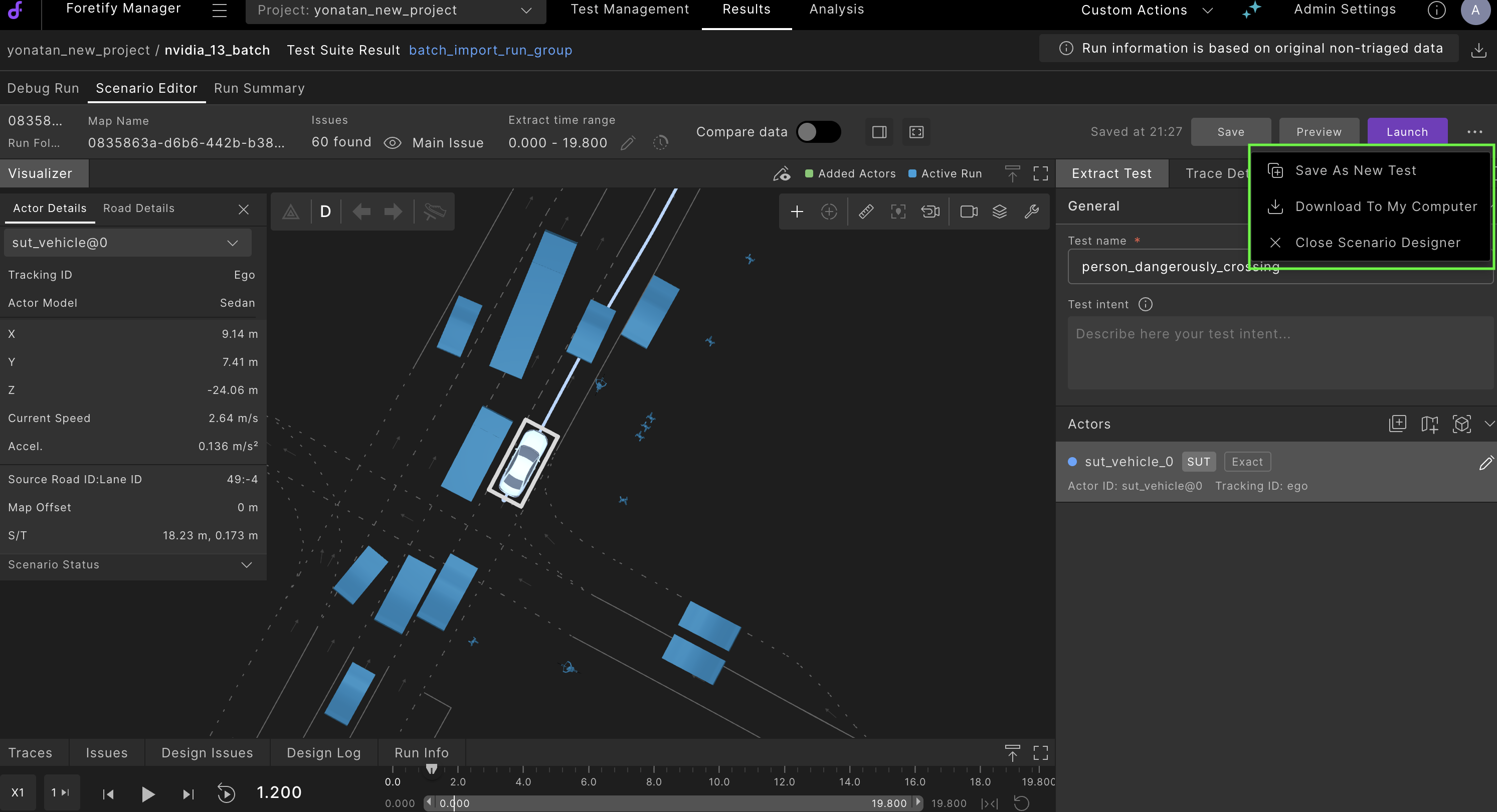
-
Select Save as new test.
The Save as new test dialog opens.
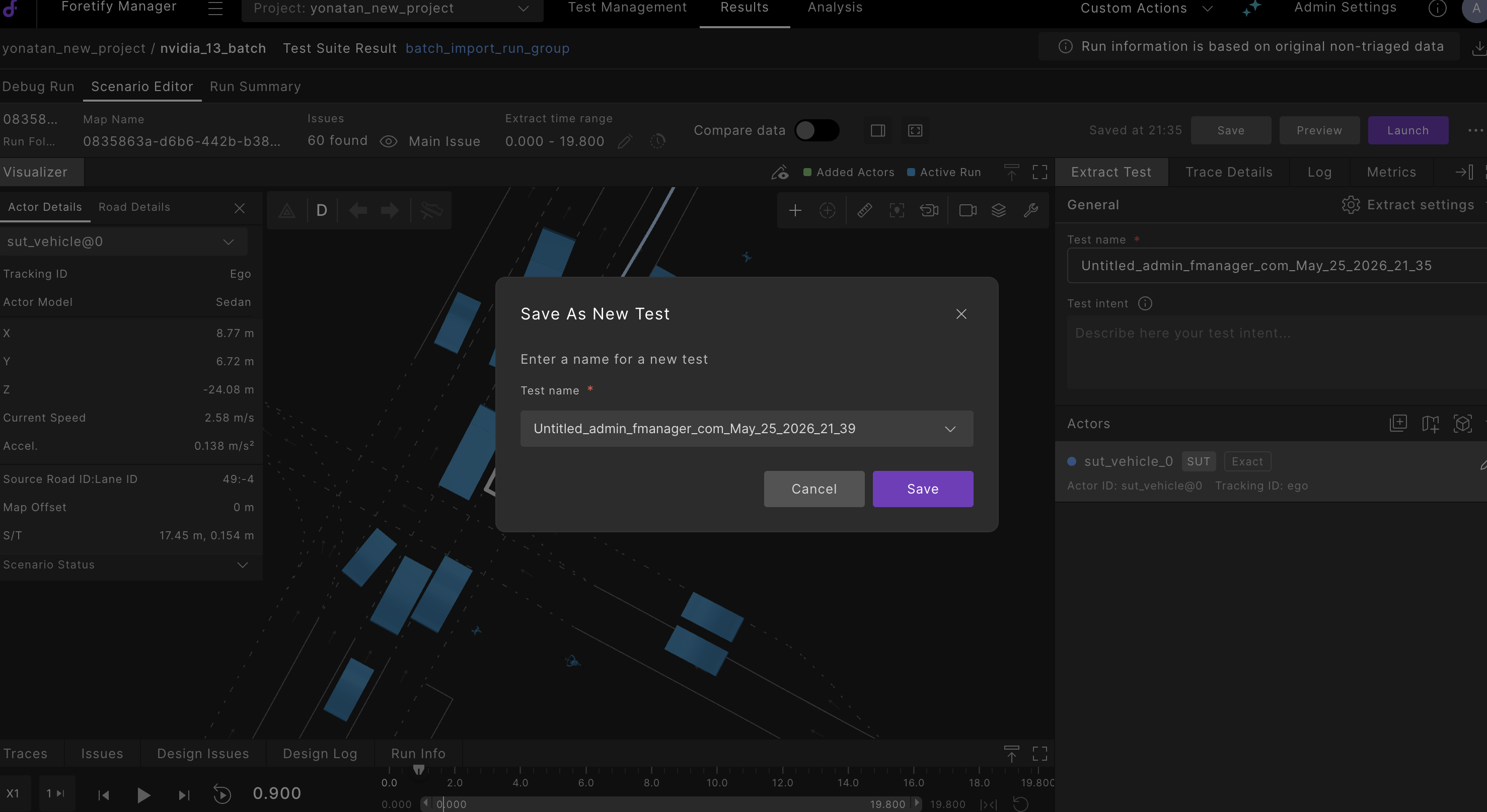
The Test Name field is pre-filled with a suggested name:
-
<original-name>_copy(or_copy_2,_copy_3, etc. if a copy already exists) if the current scenario has a custom name. -
Untitled_<your-username>_<current-time>if the current scenario still has its default name.
-
-
Edit the name or select an existing test from the dropdown.
If the name matches an existing test, a warning informs you that saving will overwrite it.
-
Click Save.
The Scenario Designer creates and opens the new test in the editor. The Test name field updates to the new name, and auto-save applies to the new test going forward.
17.5 Additional actions
The More options menu in the top-right toolbar provides the following options.
| Action | Description |
|---|---|
| Save as new test | Save the current scenario as a new test, leaving the original unchanged. See Save as a new test. |
| Download to computer | Export the scenario as a ZIP file to your local machine. |
| Close scenario designer | Exit the Scenario Designer and return to the Debug Run tab. |
17.6 Load a saved test
Load a previously saved test from the Test Management tab to continue editing.
-
Click the Test Management tab.

-
Click Tests in the left sidebar.
The Manage Tests table displays all saved tests, including test name, creator, creation date, format, and original run ID. Auto-saved drafts appear here, listed under their
Untitled_name until you rename them.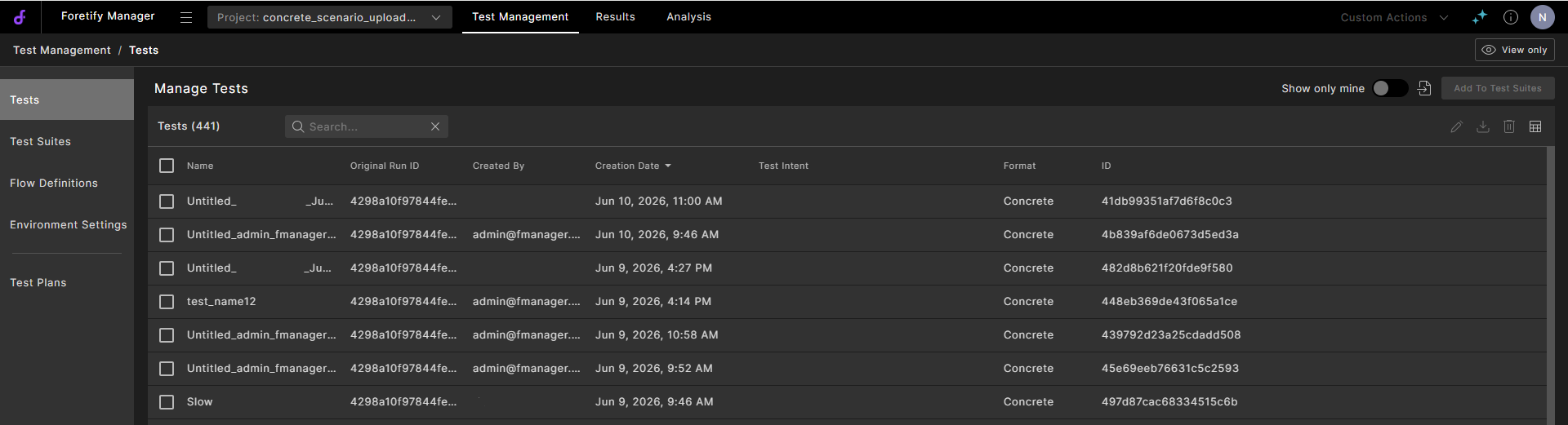
-
Select a single test with Concrete format, and click Edit test in the top-right corner.
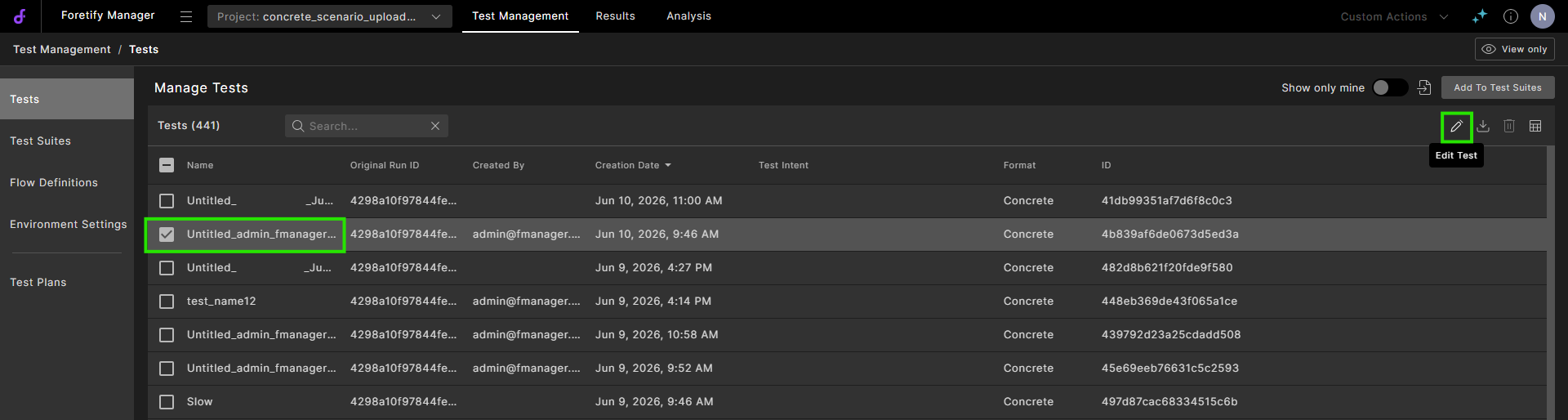
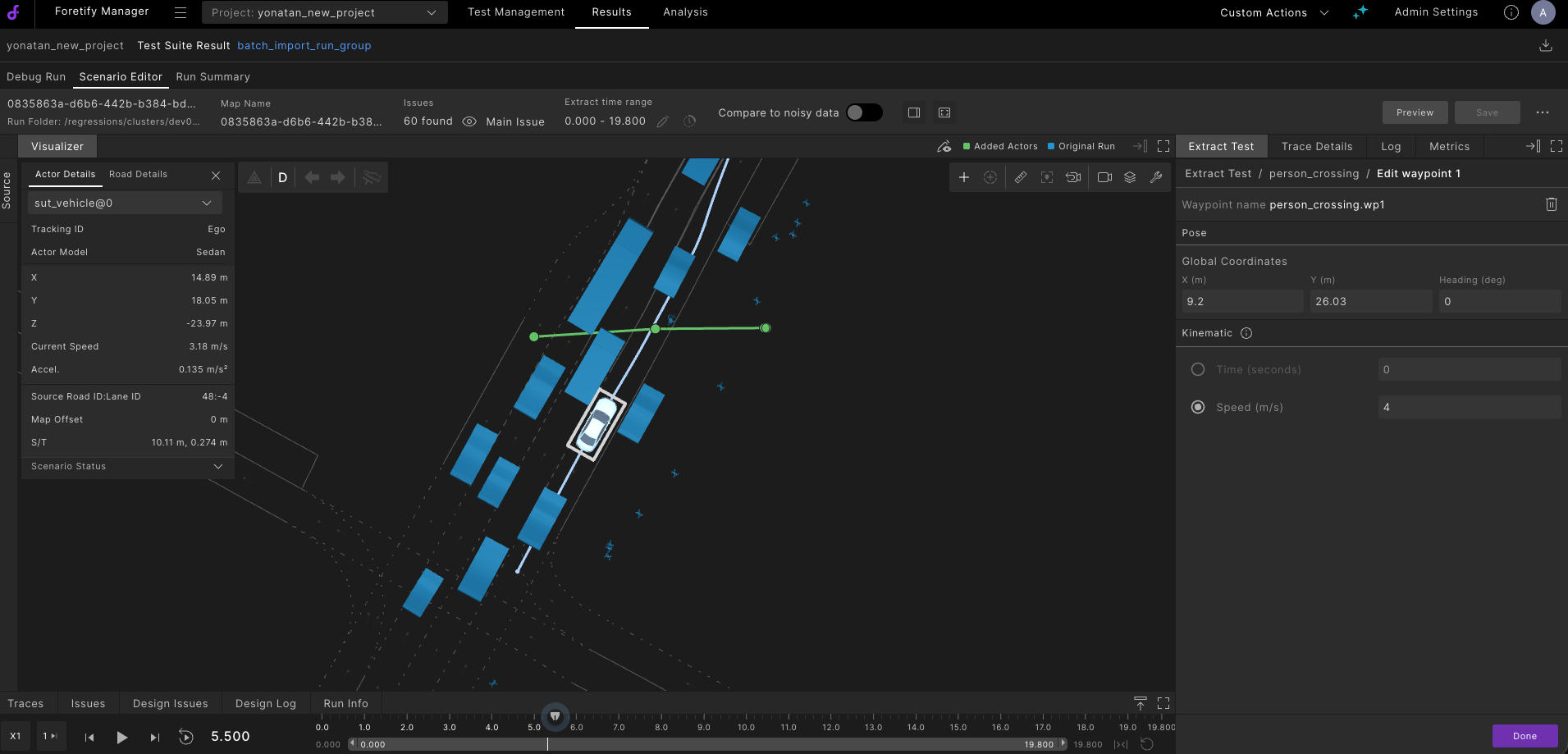
The Scenario Designer opens with the saved scenario loaded on top of the original source run.
Note
The Edit test button is enabled only when a single test with Concrete format is selected. It is disabled when no test is selected, when multiple tests are selected, or when the selected test has osc format.
-
Edit the scenario as needed. See Edit the scenario for details on modifying actors and trajectories.
Auto-save writes to the loaded test — no new test is created.
17.7 Leaving the editor
Your work in the Scenario Designer is always safe. Auto-save continuously captures your progress, so you never have to worry about losing your changes when you exit.
When you click Close scenario designer, the behavior depends on whether you have named the scenario.
If you renamed the scenario, the Scenario Designer closes immediately and your latest edits are already saved.
If the scenario still has its default Untitled_<your-username>_<session-timestamp> name, the Before you leave... dialog opens.
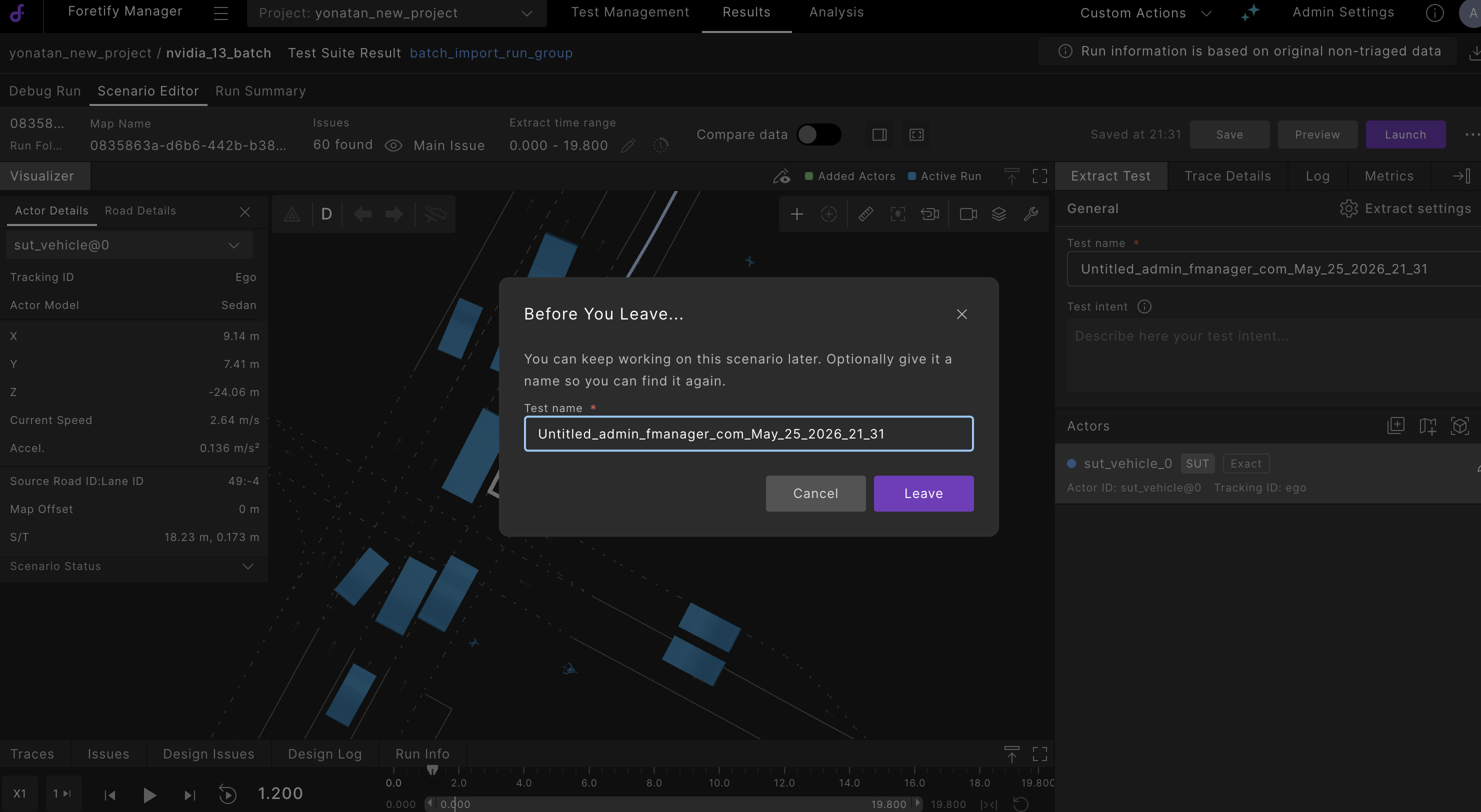
The dialog offers two choices:
- Cancel — Stay in the Scenario Designer and continue editing.
- Leave — Exit the Scenario Designer. The
Untitleddraft remains in Test Management under its generated name. You can rename, edit, or delete it later.
Note
If you typed a name in the Test name input before clicking Leave, the rename is committed before the editor closes.
17.7.1 Cleaning up unwanted drafts
Auto-saved Untitled drafts stay in Test Management until you remove them. To delete a draft you no longer need:
- Open the Test Management tab.
- Select the draft in the Manage Tests table.
- Use the delete action to remove it.
17.8 Troubleshooting
17.8.1 Save status shows Unable to save
Symptom: The Save status indicator in the toolbar reads Unable to save.
Solution:
- Keep editing — the Scenario Designer retries the save automatically.
- If the failure persists, check your network connection.
- If the failure still persists, click Save in the toolbar to force a save and capture any error reported by the application. Contact support if this save also fails.
17.8.2 Test name input shows a brief error when cleared
Symptom: Clearing the Test name input briefly shows a required-field error before the name reverts.
Solution: Click outside the field or press Tab. The name reverts to the session default, the error clears, and no data is lost.
17.8.3 Untitled drafts accumulating in Test Management
Symptom: The Test Management list contains unwanted Untitled_ drafts from previous editing sessions.
Solution: Go to Test Management, select the unwanted Untitled_ drafts from the list, and delete them.
Note
An untitled draft is automatically created at the start of every new editing session to ensure your work is never lost. You can safely delete these drafts if you don't need them.