76. Edit a VPlan
You can only edit the VPlans that you have created, not VPlans created by other project team members.
You can add sections to the VPlan that group similar entities together. For example, you might want to separate out the global metrics from metrics collected by scenarios that test AV or ADAS functions.
Within the global metrics section, you can separate metrics collected during sut.car.drive(), such as distance traveled, from other data, such as the map used during the run, the SUT version and so on.
In the VPlan Editor, you can:
- Provide permissions in VPlan
- Add a new section
- Add a section that references another section
- Add metric items by name or by drag-and-drop
- Modify section attributes
- Create custom VPlan attributes
- Manage VPlans
To open a VPlan to edit, do the following:
- Click the Navigation menu
 icon at the top of the window, and select VPlans.
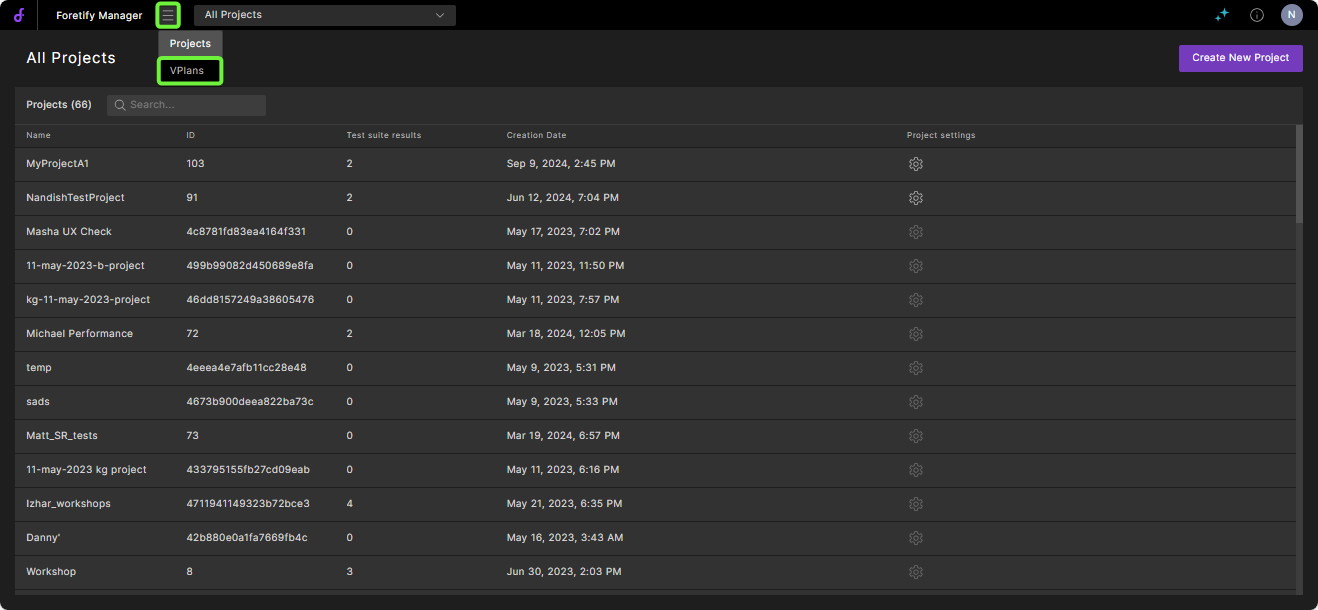
or
- In a workspace, click the down arrow on the VPlan tab and select Edit VPlan from the VPlan options.
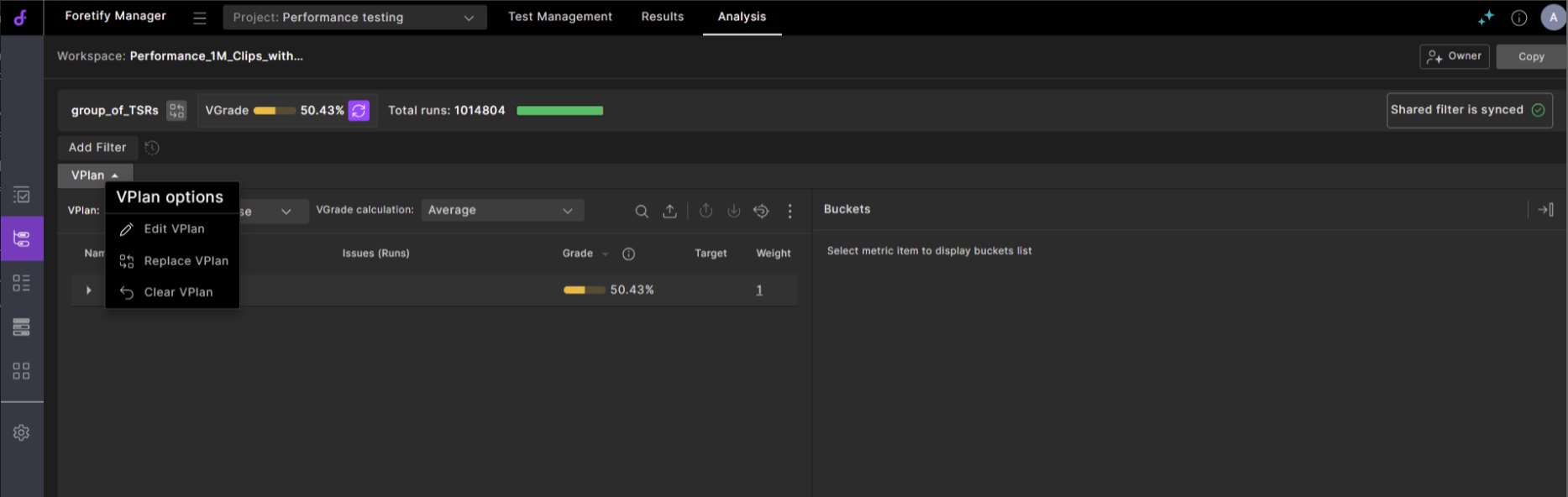
76.1 Rearrange existing sections or metric items
To rearrange sections or metric items, press the Alt key and drag-and-drop any section or metric item in the VPlan into a new position.
76.2 Add a new section
-
Click the Add (+) icon next to an existing section and select one of the following options:
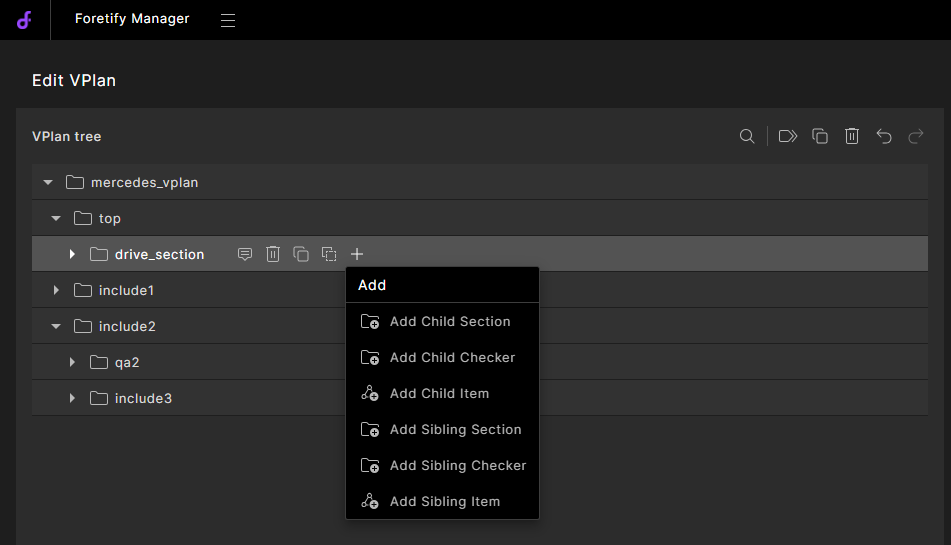
- Child section — a generic section nested under the current section, marked with a folder icon.
- Child checker — a checker section nested under the current section, marked with a check icon. Use to document checkers such as those defined with
collect(). - Child item — a metric item nested under the current section.
- Sibling section — a generic section at the same level as the current section, marked with a folder icon.
- Sibling checker — a checker section at the same level as the current section, marked with a check icon.
-
Type a name for the new section.
76.3 Add a section that references another section
In complex VPlans, you might need to include the same section in multiple places of the same VPlan. For example, you might want to analyze aspects of the cut in and slow() scenario in various contexts, such as in a complete list of scenarios and in a list of AEB scenarios.
Copying a section and pasting it in a different location requires manual updates in multiple locations if changes occur. To avoid this, you can copy a section as a reference. Any changes made in a referenced section automatically appear in all referencing sections.
You can use this same feature to include a section, even an entire VPlan, within a different VPlan.
76.3.1 Copy a section as a reference
-
Hover over the section node and click the Copy As Reference icon.
-
Select the target section in the current VPlan or in a different VPlan, and click the Paste icon.
76.3.2 Navigate to a referenced section
Hover over a referenced section and click the Show Referenced Section icon.
The focus shifts to the referenced section. If the source is in a different VPlan, it opens in a new tab with the referenced section highlighted.
76.4 Add metric items
Click the Filter icon at the top right of the Metrics model pane to filter metric items by:
- Mapping — displays items that are already mapped to the VPlan or not.
- Metrics Type — displays coverage items or record/KPI items.
76.4.1 Add metric items by typing names
-
Click the Add (+) icon of the section and choose Add Child Item, or click it on an item and choose Add Sibling Item.
-
Type in a regular expression that matches the names of the items you want to add.
You can use the
*wildcard. For example, sut.sut_at_highway_exit.end.* refers to all metric items sampled at the end event of the sut.sut_at_highway_exit() scenario.
76.4.2 Add metric items from the metrics model
Select a metric item in the Metrics model and drag-and-drop it into the appropriate VPlan section.
Note
A Show Mapping Rule icon appears next to the item in the metrics model. Click it to highlight the item in the VPlan tree.