42. Compare runs on the same map
In the Single Run Debugger, the Compare runs icon lets you overlay any two runs that share the same map, so you can see how each run behaves in the same situation.
Use it when you have several runs of the same situation — for example, runs produced by different seeds, tools, or Foretellix Driver behaviors — and you want to see how their trajectories differ on the same road.
Same map compare lets you overlay any two runs that share the same map, whether or not they are related. Comparing existing runs does not re-execute, extract, or re-simulate anything.
Note
You can compare two runs only when they use the same map. The run picker lists only runs on the same map as the run you start from.
You can start a comparison from two places:
- The Runs table — select a run, then pick a second run to overlay.
- The Single Run Debugger — use the Compare data dropdown to overlay a second run on the run you are already viewing.
42.1 Compare runs from the Runs table
-
Open the Runs table. See Analyze runs.
-
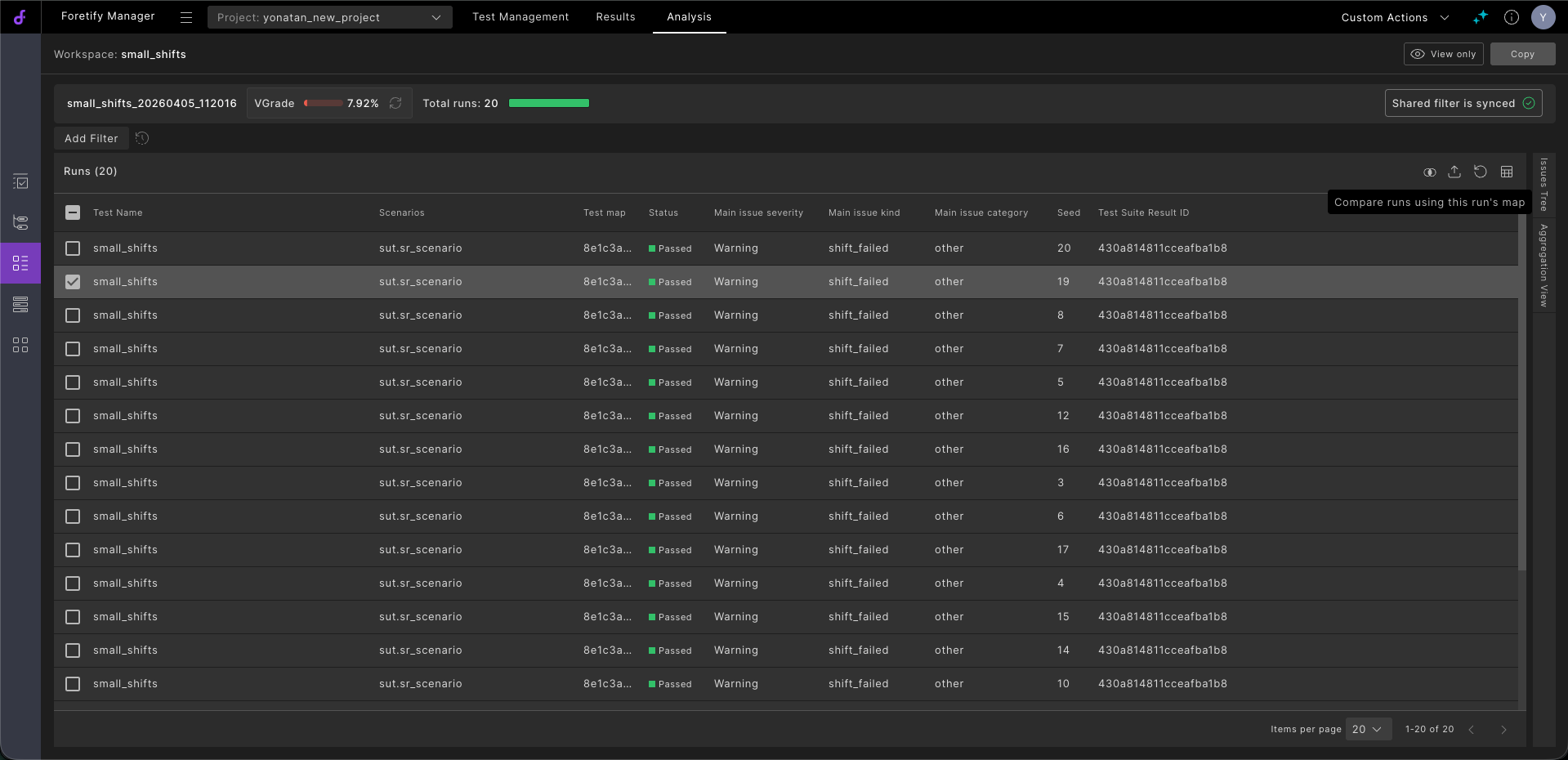
Select a run.
-
Click the Compare runs
 icon to enable it.
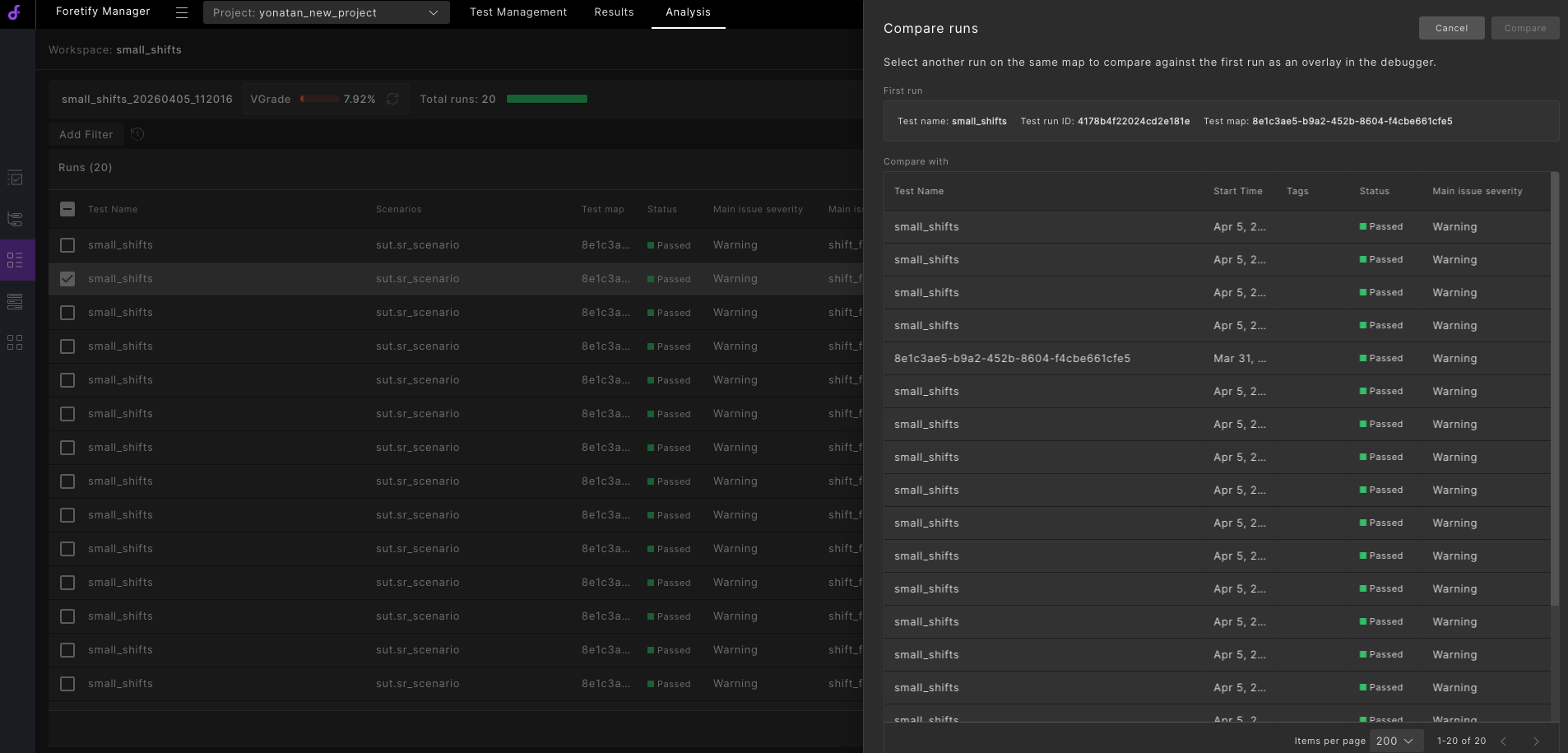
The Compare runs dialog opens. The First run section shows the run you selected — its test name, run ID, and map ID. The Compare with table lists the other runs on the same map.
-
Find the run you want to overlay. For each run, the table shows the test name, start time, tags, status, and main issue severity. Use the search field to filter the list by test name or tag.
-
Select the run, then click Compare.
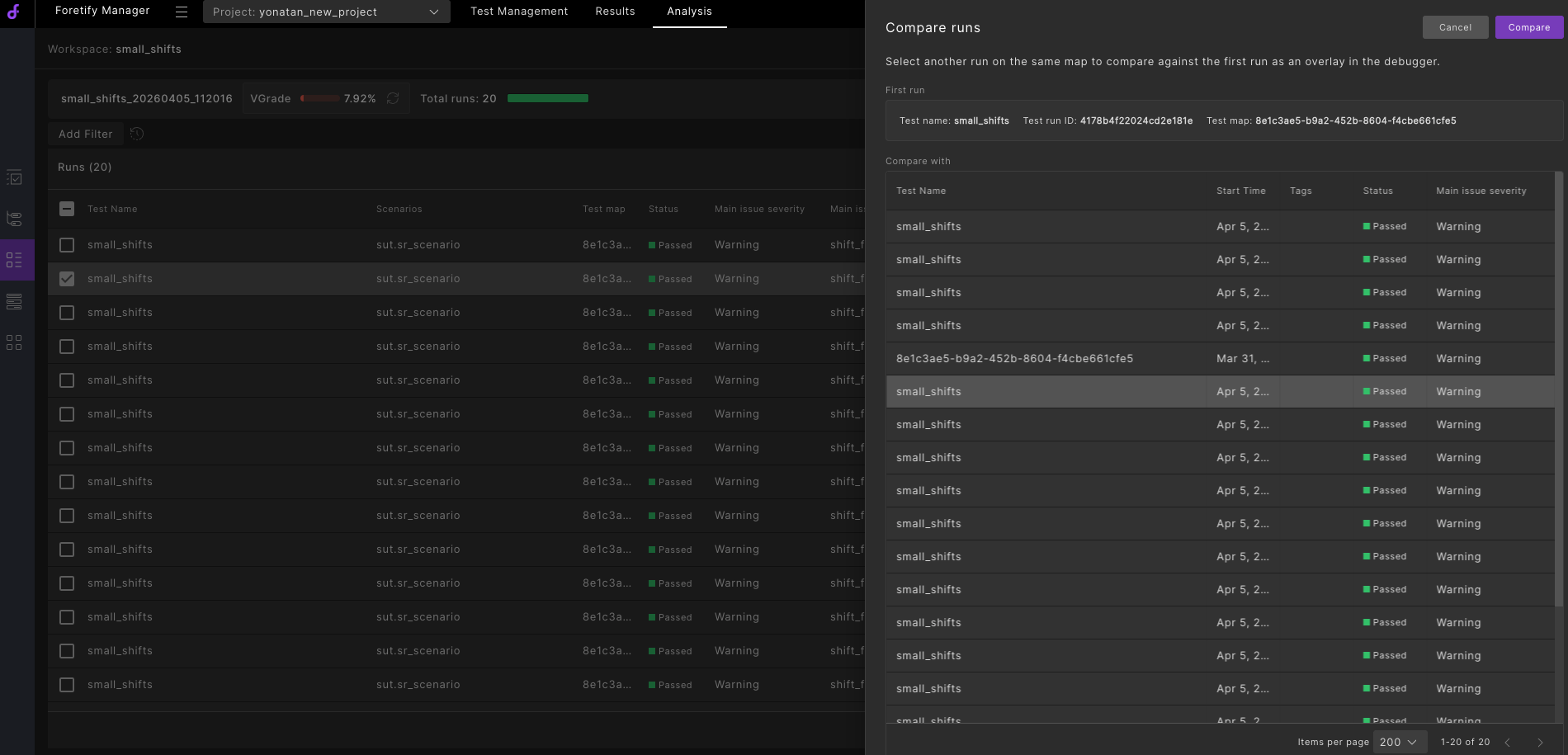
The Single Run Debugger opens with both runs overlaid. To close the drawer without comparing, click Cancel.
42.2 Compare runs in the Single Run Debugger
When a run is open in the Single Run Debugger, use the Compare data toggle to select and overlay a second run from the same map.
-
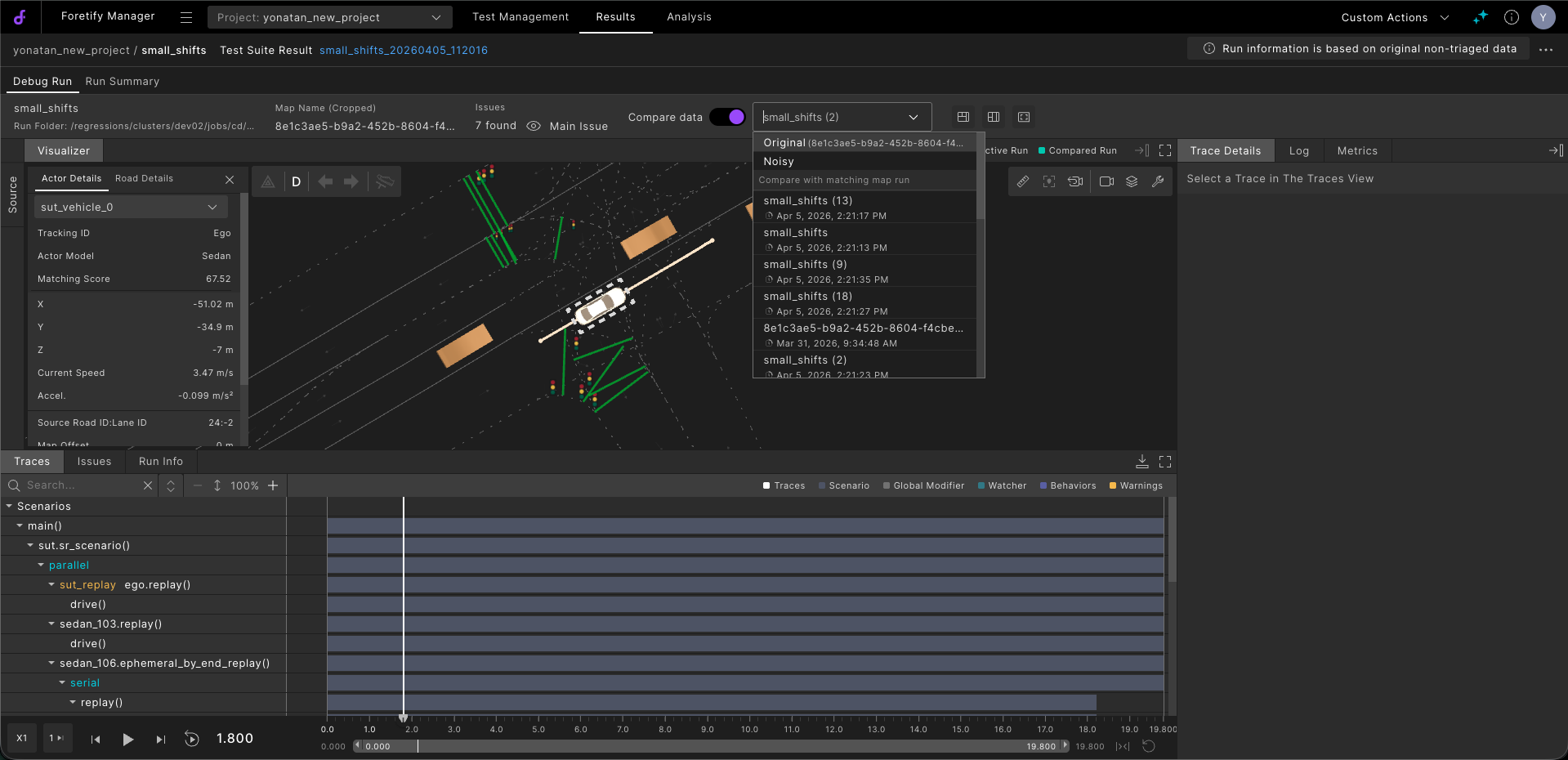
Toggle on Compare data to show the run picker. If the run has noisy data, that data is preselected; otherwise the picker shows the placeholder Compare to… until you choose a run.
The picker lists the other runs on the same map. If the current run has its own noisy data or an original source run, those appear as pinned options above the list.
-
Find the run you want to overlay:
-
Each row shows the run's test name. If the run has a non-default seed, it appears in parentheses after the name. If the name is too long to fit, hover over it to see the full name in a tooltip.
-
Tags appear at the bottom right of each row. If there is no room for all of them, the last item is a counter for the remaining tags. Hover over the tags to see all of them in a tooltip.
-
Scroll to the end of the list to load more runs. A loading indicator appears while more runs are fetched.
-
-
Select a run.
Both runs render in the Visualizer at the same time. The compared run displays in a distinct color so you can tell the two runs apart, and a legend identifies which color belongs to which run.
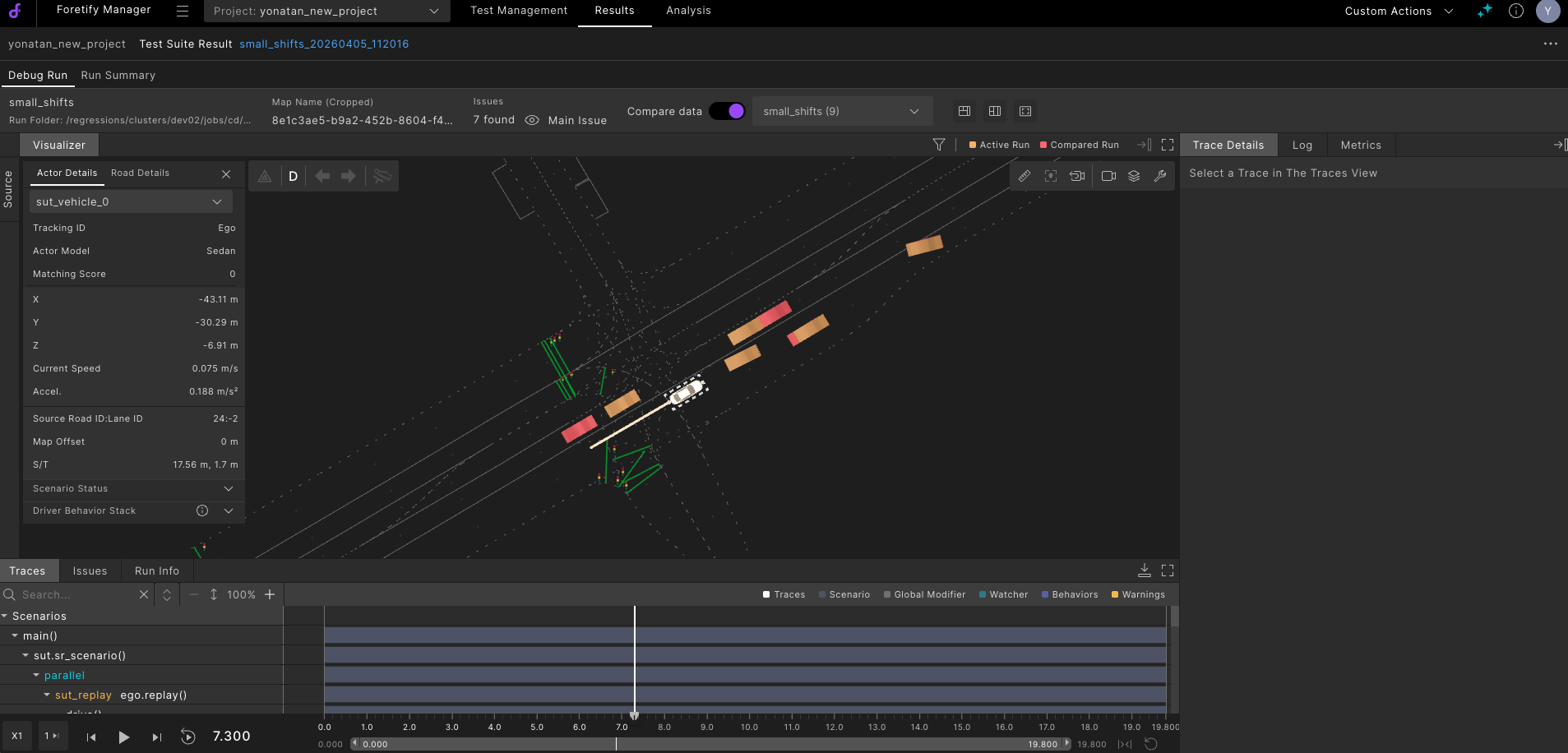
While the selected run loads, the Compare data dropdown is disabled and a spinner displays. If the run fails to load, a red error icon appears next to the dropdown. Hover over the icon to see the reason, then select a different run to compare.