74. Creating VPlans
You can create a VPlan in two ways, depending on where you are in your project.
If you already have test suites and a workspace, the metrics model is available, so you don't need to type in metric item names manually. You can create an initial VPlan based on a test suite with even a few runs, then expand it as you add more scenarios.
If you have a project requirements document but haven't started running test suites yet, you can build the VPlan structure first and align it with your requirements. You then fill in the metric items as you create scenarios and define metrics.
Either way, writing a VPlan is an iterative process.
To create a new VPlan:
-
Click the Navigation menu
 icon at the top of the window, and select VPlans.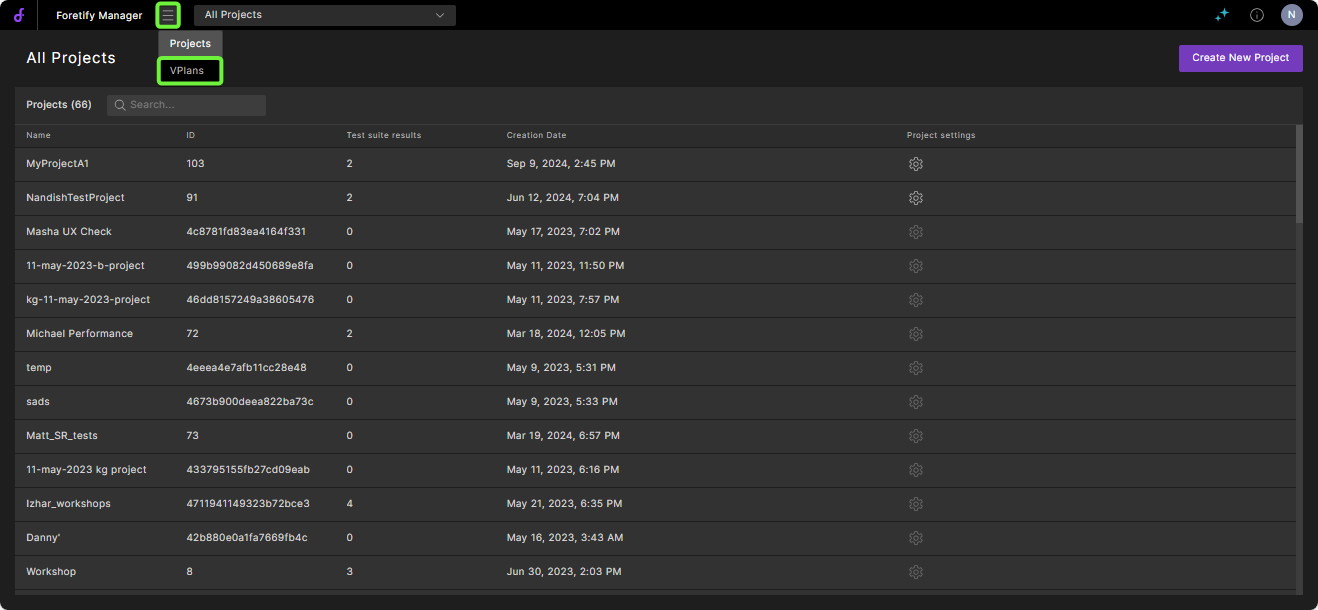
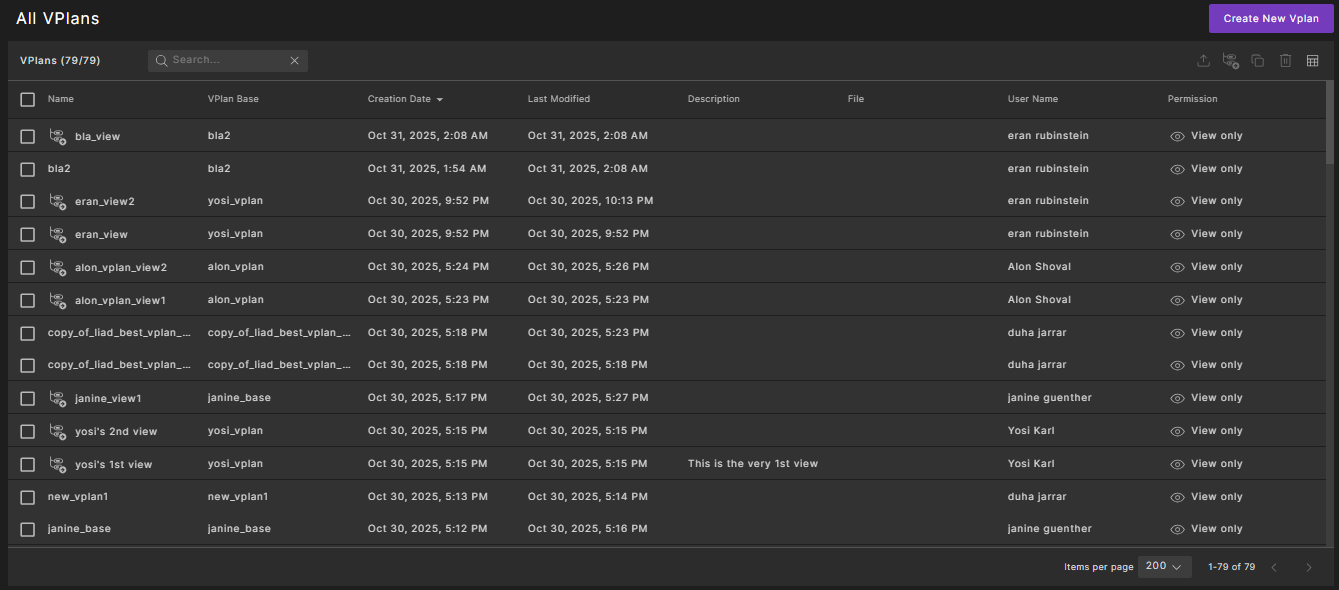
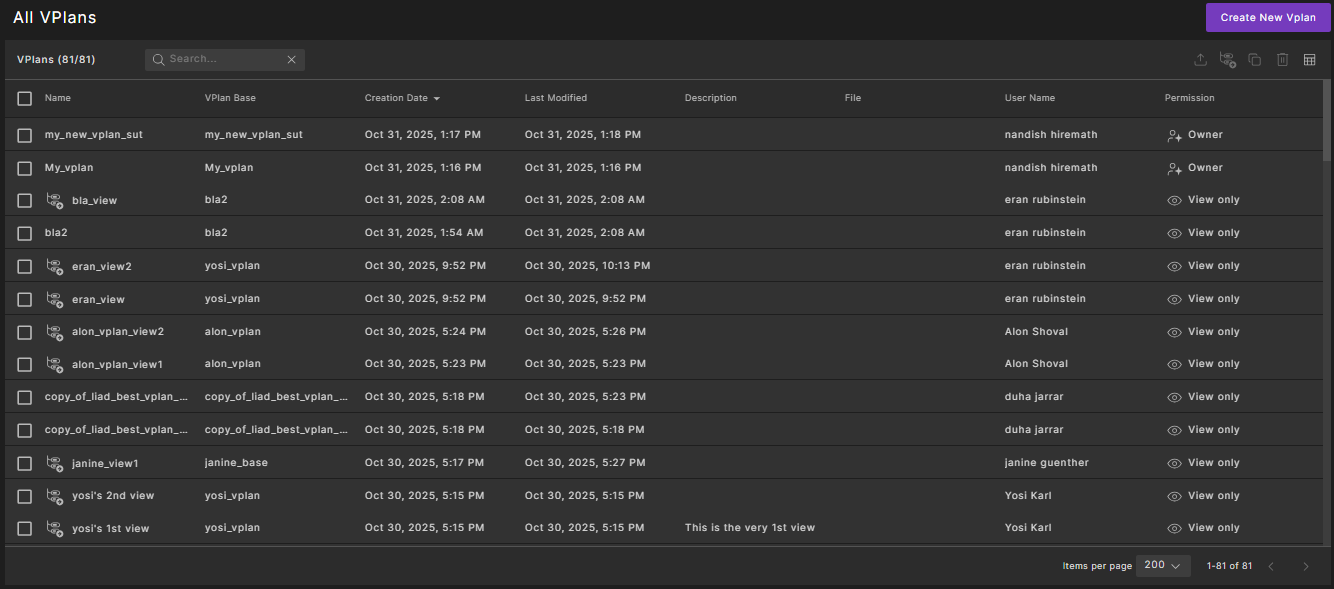
A list of currently available VPlans is displayed.
-
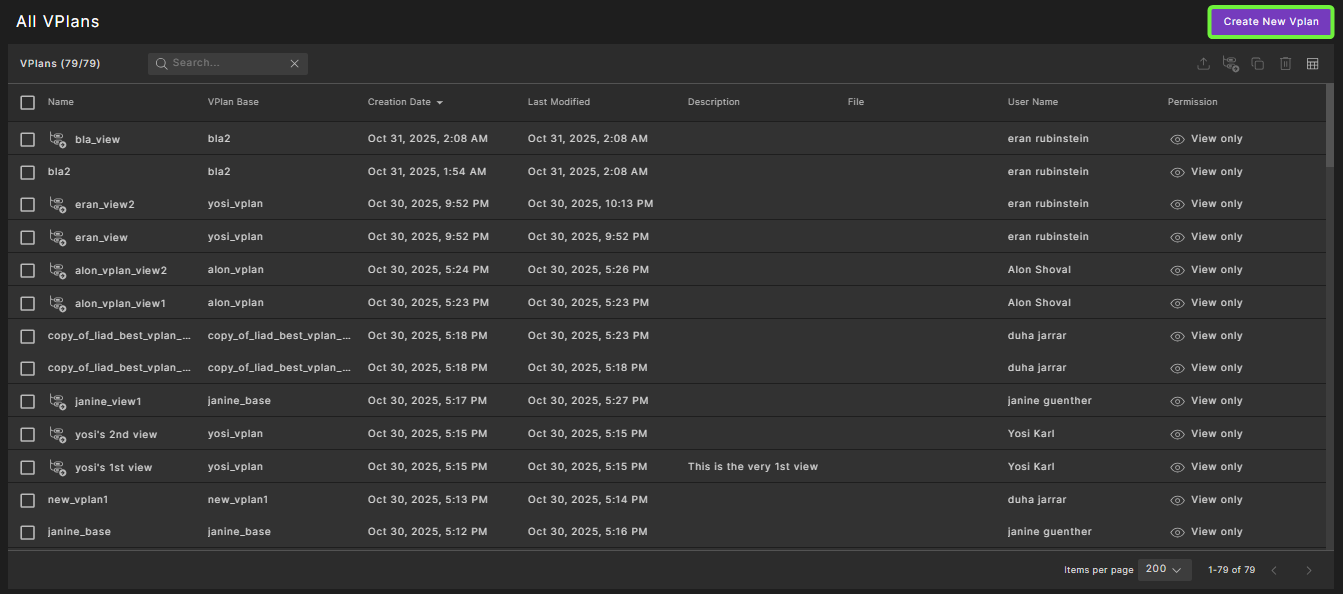
Click Create New VPlan in the top right corner.
The VPlan Editor opens, displaying the VPlan tree with a new top-level section called new_vplan.
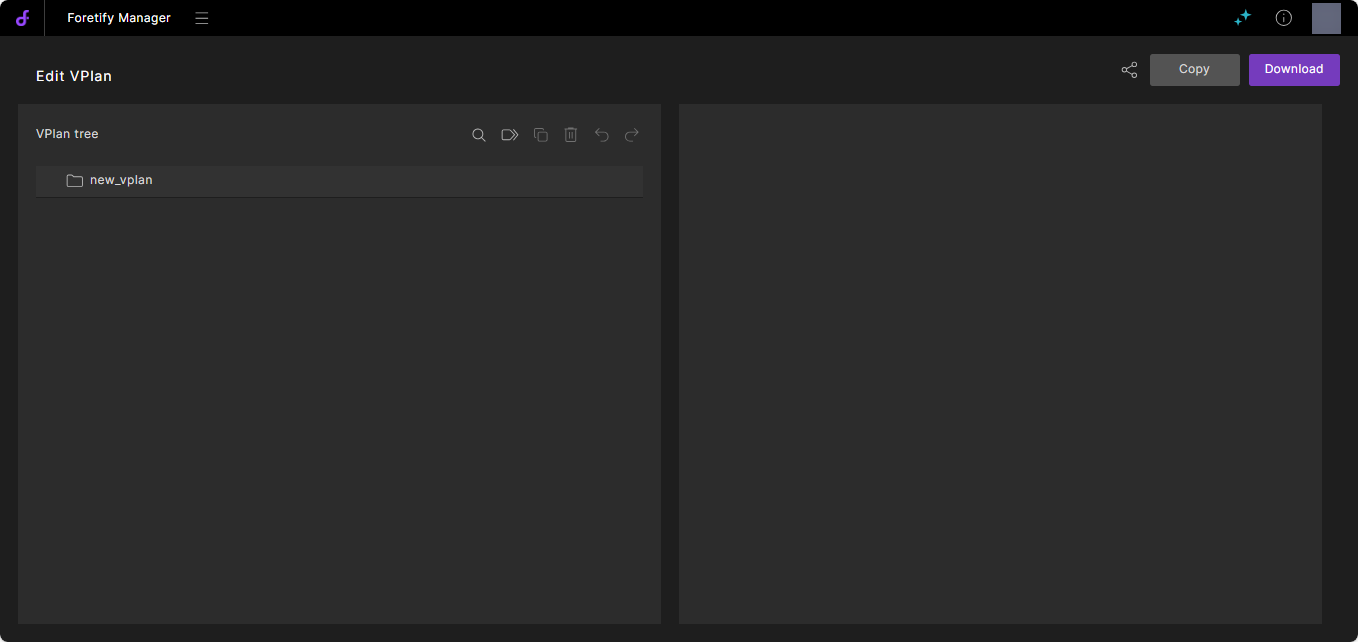
No metrics model is present because you didn't open the VPlan Editor from a workspace.
-
To change the name of the VPlan, click the new_vplan name, type in the name you want, and press Enter.
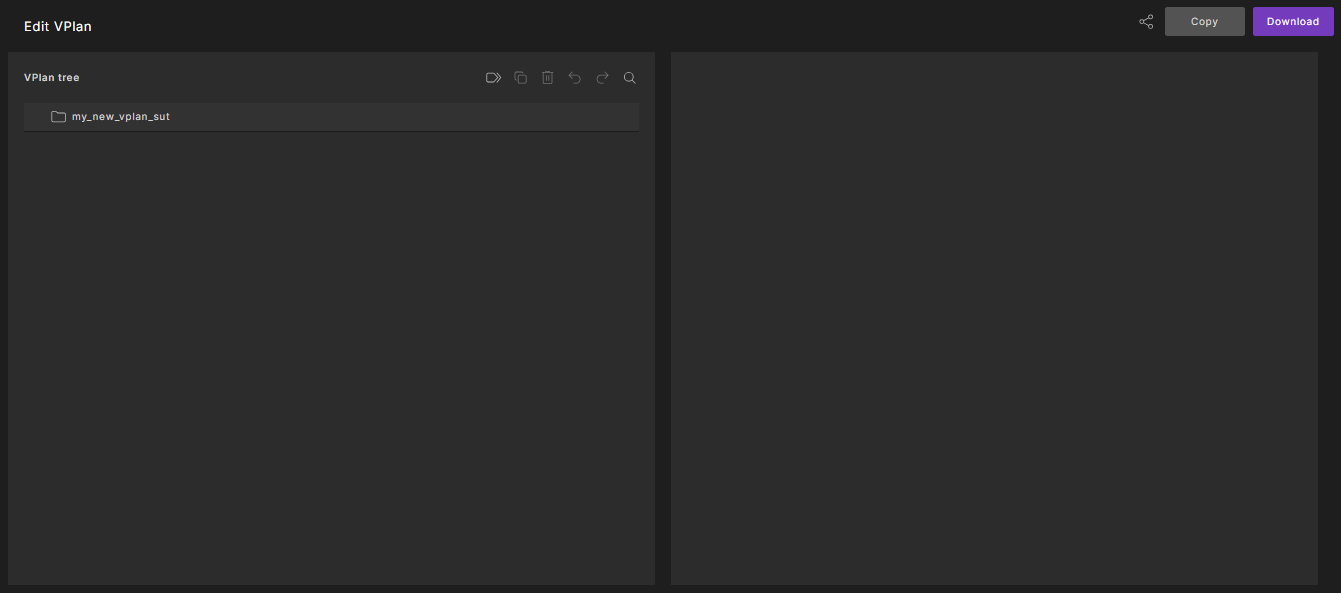
The VPlan is automatically saved with the current name in the All VPlans.
-
You can now edit the VPlan that you created, as required.